
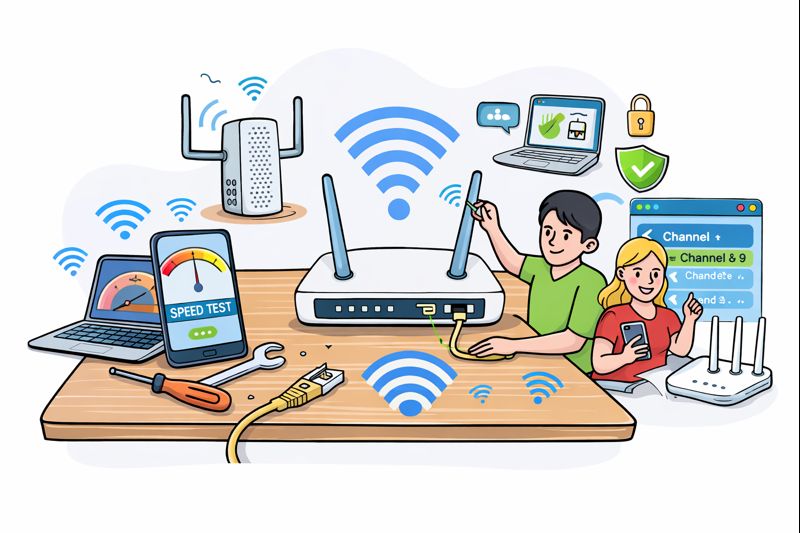
I’ve set up (and rescued) more home wi-fi networks than I can count: tiny apartments with one router, multi-floor houses with dead zones, and “why is the internet only slow when I start a game?” mysteries. The good news is that most wi-fi speed problems have boring, fixable causes. The even better news: you can usually get a noticeable improvement without buying anything.
Here are 12 fixes that actually work, in the order I’d try them at home.
1) Run a proper speed test (and do it right)
Before you change anything, test. Use a speed test app or site, but don’t do it once and declare victory or defeat. Do three tests:
- Next to the router
- In the room where it feels slow
- On a wired connection (if you can, even once)
If the wired speed is great and wi-fi is bad, the problem is your wireless setup. If wired is also bad, you may be looking at an ISP issue, modem trouble, or a plan limitation.
2) Restart the right way (router and modem)
Yes, the classic “turn it off and on again” is real. Do this:
- Unplug the modem and router (or your combo unit).
- Wait 30 seconds.
- Plug in the modem first. Wait until it’s fully online.
- Plug in the router.
This clears stuck sessions, memory leaks, and the “it’s been 73 days since the last reboot” nonsense.
3) Move your router like you mean it
Router placement is the most underrated speed upgrade. Wi-fi is basically polite radio yelling, and walls are rude.
Try:
- Put the router as central as possible
- Keep it up high (shelf > floor)
- Avoid hiding it in a cabinet
- Keep it away from thick walls, metal, mirrors, aquariums (yes, water is a wi-fi villain)
If you can only change one thing today, move the router.
4) Split your bands: 2.4 GHz vs 5 GHz (and use them on purpose)
Most modern routers broadcast two main bands:
- 2.4 GHz: longer range, better through walls, more interference, usually slower
- 5 GHz: faster, cleaner, shorter range
If you’re near the router, connect to 5 GHz. If you’re far away or behind multiple walls, 2.4 GHz might be steadier. Many routers combine them under one network name, which is convenient… until your phone stubbornly clings to 2.4 GHz like it’s emotionally attached.
If your router allows it, name them separately (e.g., HomeWiFi-2G and HomeWiFi-5G). Then you can choose the right one.
5) Change the wi-fi channel (especially on 2.4 GHz)
In crowded areas, everyone’s wi-fi is competing. On 2.4 GHz, you generally want channels 1, 6, or 11 (others overlap). Many routers are set to “auto,” which sometimes chooses… poorly.
Use a wi-fi analyzer app to see which channels are busy, then manually pick a less crowded one. This is one of those “small change, surprisingly big effect” fixes.
6) Update your router firmware
Firmware updates aren’t glamorous, but they can fix bugs, improve stability, and patch security holes. Log into your router’s admin page and check for updates. If your router has an automatic update option, turn it on.
Bonus: if you haven’t changed the router admin password, do that too. Fast wi-fi is great. Uninvited guests are not.
7) Use WPA2/WPA3 and disable legacy modes
Old security modes (like WEP) are unsafe and can drag performance down because they force older compatibility settings. Use:
- WPA2-AES (good)
- WPA3 (better, if all devices support it)
Avoid WPA/WPA2 mixed mode unless you truly need it for an ancient device you refuse to retire (I see you, 2011 printer).
8) Check for “bandwidth hogs” on your network
If your wi-fi feels slow, someone (or something) might be eating the whole pie:
- Cloud backups
- Game downloads/updates
- 4K streaming on multiple screens
- Smart cameras uploading constantly
Most routers show connected devices and sometimes real-time usage. If one device is going wild, pause it, schedule big downloads overnight, or set a bandwidth limit if your router supports QoS (more on that next).
9) Turn on QoS (quality of service) for gaming and calls
QoS helps your router prioritize important traffic, like Zoom/Discord calls and gaming, over huge downloads. It won’t magically increase your internet plan speed, but it can make your connection feel much smoother.
If your router has “Adaptive QoS” or “Gaming mode,” try it. Then test again.
10) Replace old cables (yes, even for wi-fi)
This one surprises people: even if you use wi-fi, your router’s connection to the modem matters. If the Ethernet cable between modem and router is ancient or damaged, it can cap speeds.
Look for:
- Cat5e or Cat6 cables (cheap and good)
- Avoid bent, pinched, or suspiciously crunchy cables
Also check that your modem and router ports are gigabit-capable if your plan is above 100 Mbps.
11) Add coverage the smart way: mesh or access point
If you have dead zones, blasting more power isn’t the answer. You need better coverage.
Options:
- Mesh wi-fi system: easiest, great for most homes
- Wired access point: best performance if you can run a cable
- Wi-fi extender: works sometimes, but can cut performance; I treat it as a last resort
If you go mesh, place nodes so they have a decent connection to each other, not buried in the dead zone you’re trying to fix.
12) Know when it’s your ISP (and what to ask for)
Sometimes your wi-fi is fine and your internet isn’t. Signs:
- Slow speeds even on wired
- Speed drops at the same time every evening (peak congestion)
- Frequent disconnects or modem reboots
Call your ISP and ask for:
- Line quality check
- Modem signal levels review
- Replacement modem (if it’s old)
- A plan upgrade only if your household actually needs it
I’ve seen “upgrade your plan” recommended when the real fix was swapping a failing modem. Advocate for yourself.
Quick checklist if you want the fast version
If you want the biggest wins with minimal effort:
- Move the router to a central, elevated spot.
- Use 5 GHz near the router (split SSIDs if needed).
- Change 2.4 GHz channel to 1/6/11 if crowded.
- Update firmware.
- Add mesh if the house is big or multi-floor.
Wi-fi speed can feel like magic, but it’s mostly physics and a little bit of router diplomacy. Do the simple fixes first, test after each change, and you’ll usually get a faster, more stable connection without turning your living room into a networking lab.