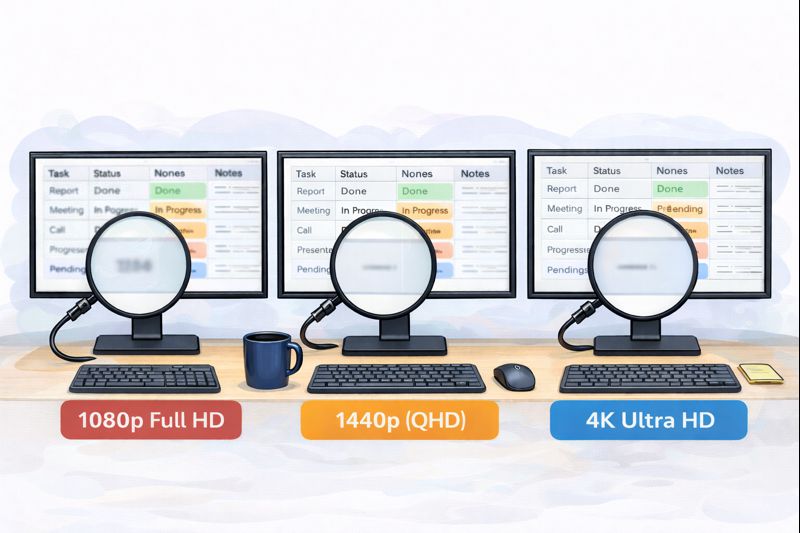
Resolution sounds like a boring number until you spend six hours a day staring at text and spreadsheets. Then it becomes very real: how sharp everything looks and how much workspace you get. The trick is choosing the right combo of screen size + resolution + what you do all day, not just buying the biggest number you can afford.
Below is a practical breakdown, plus 1–2 strong examples in each category.
1080p (Full HD): the sensible budget choice
Best for: 22–24″ screens, everyday office tasks (email, docs, web, calls).
Biggest upside: cheapest, easy on any laptop/PC, no fuss.
Biggest downside: on 27″, text usually looks less crisp and you get less “desktop space.”
Who should buy 1080p
- You want a solid first monitor and don’t want to overspend
- Your work is mostly documents, browser tabs, and video calls
- Your laptop is older and you want guaranteed smooth performance
What matters more than refresh rate here
- IPS (or similar) panel for better viewing angles and nicer text
- Matte screen (less glare)
- Height adjustment if possible (your neck will notice)
Good picks (1–2)
- HP 524sf (24″, 1080p, IPS): a clean, no-drama work monitor that does the basics right.
- Xiaomi Monitor A27i (27″, 1080p): a big screen on a budget, but expect lower text sharpness than 1440p at 27″.
1440p (QHD): the work-from-home sweet spot
Best for: 27″ (this is the classic “goldilocks” combo).
Biggest upside: noticeably sharper text than 1080p at 27″, and more room for two windows side-by-side.
Biggest downside: costs more than 1080p, and very weak machines can struggle in heavy workloads (rare for office use).
Why 1440p often wins
- Text looks cleaner without feeling tiny
- Multitasking feels natural (Docs + browser, or Slack + spreadsheet)
- Usually less scaling/zoom fiddling than 4K
Who should buy 1440p
- You work in docs + web + calls every day
- You live in spreadsheets, dashboards, research, or writing
- You want one monitor that feels “done” for years without paying 4K prices
Good picks (1–2)
- ASUS ProArt PA278CV (27″, 1440p, USB-C): a strong all-around work monitor with convenient USB-C for easy laptop setups.
- BenQ GW2790QT (27″, 1440p, USB-C): a very WFH-friendly option with an emphasis on comfort and ergonomics.
4K (UHD): when you want maximum clarity (and can use it)
Best for: 27–32″ (4K feels especially good on 32″).
Biggest upside: ultra-crisp text, tons of space, excellent for detail-heavy work.
Biggest downside: you’ll often use display scaling (like 125–150%), and it costs more. You also want solid connectivity (USB-C/Thunderbolt helps).
Who should buy 4K
- You care about clarity: writing, reading, coding, big spreadsheets
- You do photo/video/design work and want the extra detail
- You want a “one cable” laptop setup via USB-C hub (keyboard, mouse, ethernet, etc.)
What to check so you don’t regret it
- Good glare handling (matte or effective coating)
- A useful USB-C hub if you’re docking a laptop
- Ergonomic stand (height/tilt), because you’ll be reading a lot
Good picks (1–2)
- Dell UltraSharp U2723QE (27″, 4K, USB-C hub): premium “workhorse” monitor with a great hub for a clean desk setup.
- LG 27UP850K-W (27″, 4K, IPS, USB-C): a strong value 4K option for work (and light creative tasks) without going ultra-expensive.
Quick decision guide
- Best budget and simplest: 24″ 1080p
- Best balance for most people: 27″ 1440p
- Best clarity and workspace: 27–32″ 4K (expect scaling)